by Johnson Yip
on January 14, 2010
Windows Memory Diagnostics for Windows 7 is kind of like Scan disk for Windows, but it scans your RAM/Memory for corrupt/damage memory chips instead of your hard drive for corrupt sectors like scan disk. Windows can be very weird at times. It can randomly crash, but you do not know if it is caused by a memory problem, or a software problem. Well, you can now find out by using Memory Diagnostic for Windows 7 and Vista. It is very easy to start.
Learn how to launch and use Memory Diagnostic for Windows 7 and Vista
Tagged as:
memory,
microsoft,
ram,
troubleshoot,
tutorial,
vista,
windows 7,
Windows Memory Diagnostics
by Johnson Yip
on January 13, 2010
in
Computer,
Computer Tutorials,
Hardware Tutorials,
Internal PC Parts,
Local PC security,
Microsoft Windows,
Operating Systems,
Peripherals & Accessories,
Security,
Software,
software tutorial,
System Utilities,
Tech Tutorials
System repair disc
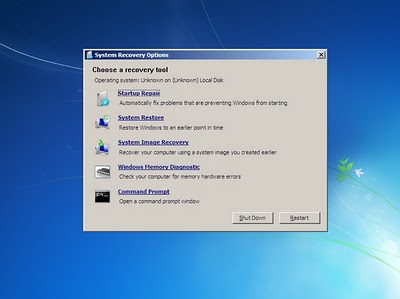
Creating a System Repair Disk in Windows 7 is very useful. You can start your computer from the system repair cd, and fix problems which are preventing Windows from starting, do a system restore, perform a system image recovery from a image you made with Windows 7 back up wizard, run a memory diagnostic to test for bad RAM, and use the command prompt to back up files, delete files, and do other administrative tasks. Making a repair disk in Windows 7 is simple. The System repair disk can save you a lot of time when you can’t log in to Windows because of an error. For example, if your hard drive crashes, you can buy a new hard drive and reimage your hard drive to its previous state if you image your drive with Windows back up wizard with the Windows 7 repair CD.
Learn to make a sysem repair disk in Windows 7
Tagged as:
boot disk,
command prompt,
create system repair disc,
live cd,
memory diagnostic,
repair windows start up,
system image recovery,
system restore,
windows 7
by Johnson Yip
on January 13, 2010
in
Computer,
Computer Tutorials,
File Backup Imaging Recovery,
Hardware Tutorials,
Internal PC Parts,
Linux,
Local PC security,
Operating Systems,
Peripherals & Accessories,
Security,
Software,
software tutorial,
System Utilities,
Tech Tutorials
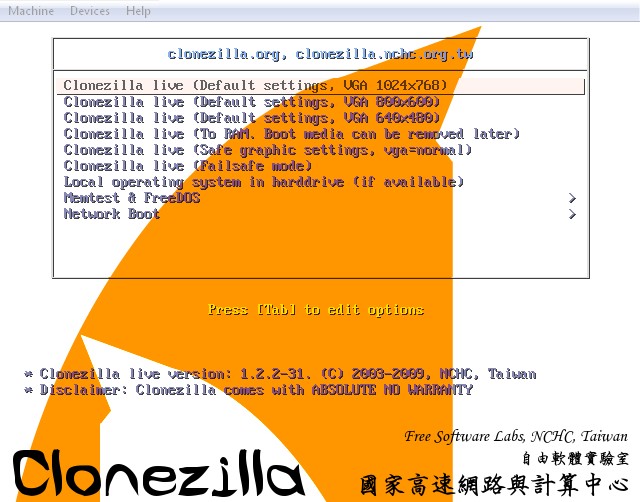
Select your display settings you want to use
Download Clonezilla ISOÂ at http://clonezilla.org/
You first need to burn the ISO file with a CD/DVD burning software like Roxio Creator 2010 Pro Â which has an ISO burning feature.
 which has an ISO burning feature.
CloneZilla is a free Linux liveCD which users can use to clone their hard drives or partition. What is best about Clonezilla is it does not require you to permanently install it on a hard drive. This saves you time, and it means you can clone your hard drive even if Windows won’t start, so you can at least restore your files to another drive to restore your files. Plus, since Clonezilla is a livecd, it won’t get slowed down by other processes like your antivirus, msn, etc. All your CPU and RAM resources will be used to clone your drive. Clonezilla is best for people who have slower PCs since it does not need a fast CPU or lots of RAM to work. It is also good if you just want to quickly clone your drive without the need to install an additional program to your PC. Clonezilla can also be set up to back up or restore an image to another computer on a network. For most users, imaging and restoring  a computer to an external hard drive like the Iomega Prestige 1 TB USB 2.0 External Hard Drive  would be good enough for their needs. The downside of Clonezilla is its appearance is not very nice, and requires more reading then most cloning software made for Windows.
If you want a disk cloning software that works within Windows, and offers a better simpler user interface, Symantec Norton Ghost 15.0 (1 PC)  is more suited for your needs.
Learn how to use Clonezilla to Backup and Restore your hard drive data to its original state
Tagged as:
cloning,
data security,
disk cloning,
hard disk,
imaging,
Linux,
live cd,
restore