by Johnson Yip
on January 19, 2010
in
Computer,
Computer Certifications,
Computer Tutorials,
File Backup Imaging Recovery,
Hardware Tutorials,
Internal PC Parts,
Local PC security,
Microsoft Windows,
Operating Systems,
Peripherals & Accessories,
Security,
Software,
software tutorial,
System Utilities,
Tech Tutorials
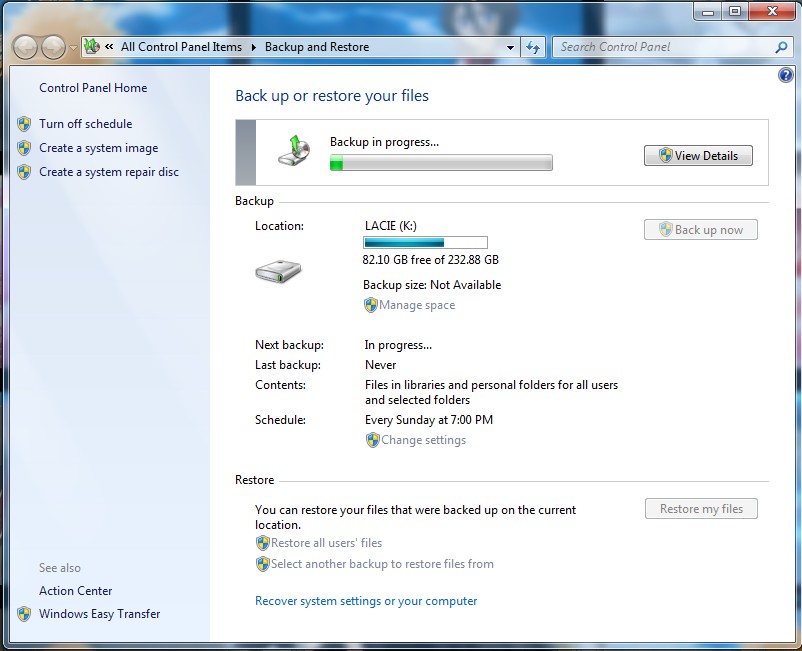
Do you have 7 minutes to spare for setting up Windows to automatically back up your files? If you do not then you probably don’t have 7 days to spare when you lost your files because of a broken drive which you have to send to a data recovery expert to recover your data. It can cost $700 or more to recover your Data. Data recovery isn’t cheap. Fortunately, Windows 7 has a free built-in Backup and Restore program which is very easy to set up to have your computer automatically back up files to an external hard drive or network drive depending on your version of Windows. For most users it should only take under 7 minutes to set up the backup wizard for Back up and Restore.
Learn how to set up Windows 7 Built-in Backup and restore wizard, and how to restore files from it
Tagged as:
back up and restore,
backup,
data security,
file backup,
windows 7
by Johnson Yip
on January 19, 2010
in
Computer,
Computer Tutorials,
File Backup Imaging Recovery,
Hardware Tutorials,
Internal PC Parts,
Microsoft Windows,
Peripherals & Accessories,
Software,
software tutorial,
System Utilities,
Tech Tutorials
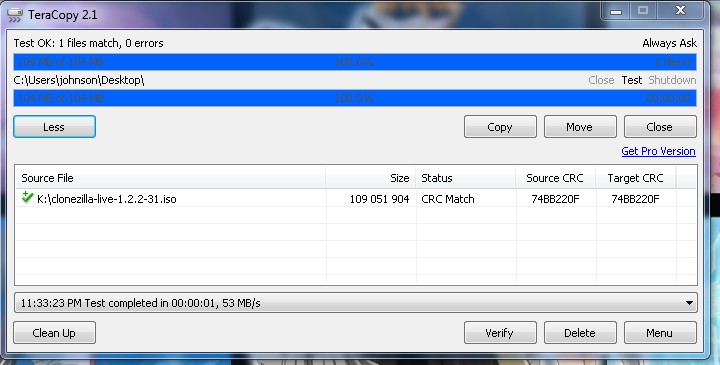
TeraCopy is a great little program which moves files faster to another drive by using dynamically adjusted buffer which an reduce seek times for drives. It can pause and resume file transfers when the user press a button. Tera Copy has error recovery functionality. It will try multiple times to copy a file which has errors, and skip the file transfer if it can’t transfer, but it won’t stop the entire copy of other files. It also verifies the files to see if they are an exact copy of the file being copied. You can also make Teracopy the default file copy program. It is also simple to use.
Download it at http://www.codesector.com/teracopy.php
See how easy and fast it is to copy files to another drive with TeraCopy
Tagged as:
back up,
copy,
copying,
file management,
free,
moving,
teracopy,
windows
by Johnson Yip
on January 18, 2010
in
Computer,
Computer Tutorials,
File Backup Imaging Recovery,
Hardware Tutorials,
Internal PC Parts,
Local PC security,
Microsoft Windows,
Operating Systems,
Security,
Software,
software tutorial,
System Utilities,
Tech Tutorials
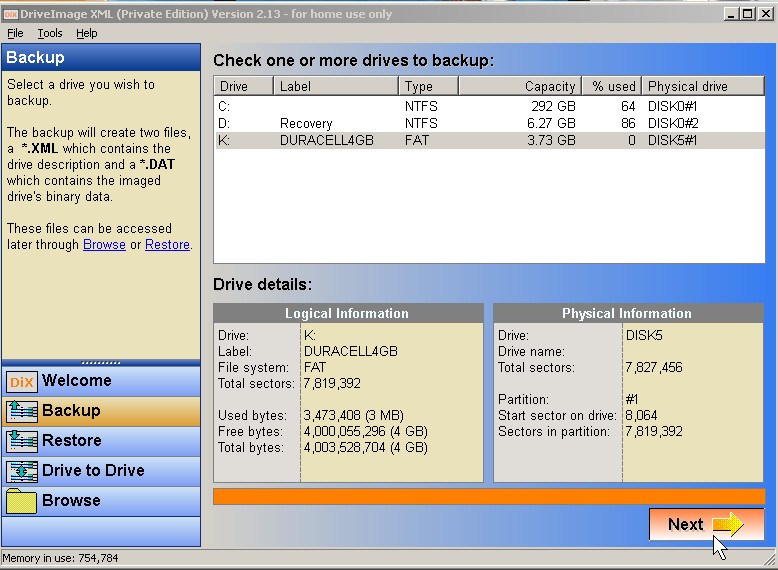
Drive imaging is when software makes an exact image of a hard drive and all it’s contents and save it to a file or multiple files which you can use to restore your hard drive with. DriveImage XML is a free disk imaging program which uses an XML file to instruct your computer to re-image your drive. DriveImage XML is very easy to use.
Download it at http://www.runtime.org/driveimage-xml.htm
Imaging a Hard drive/Partition with DriveImage XML Free disk Imaging software
Tagged as:
backup,
clonning,
disk cloning,
disk imaging,
DriveImage XML,
Free disk Imaging software,
imaging,
pc security