by Johnson Yip
on January 21, 2010
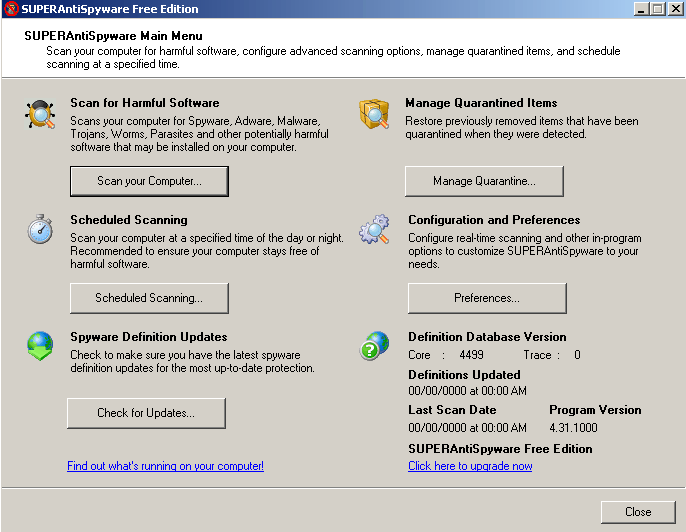
The new portable anti-spyware scanner detect and remove over 1,000,000 spyware/malware infections. It is just like the free edition of SUPERAntispyware, but the user does not have to install it onto a host operating system like Windows XP. It can be started directly on an USB flash drive, or from a CD-R. The scanner contains the most recent definitions, so a anti-spyware definition is not necessary and no Internet or network connection is needed to use SUPERAntispyware portable. It is free to use for non-commercial purposes.
All you have to do is download the file to your computer, and copy it to an external drive or burn it to a CD-R, and bring the external drive or CD-R to your infected computer, and load and start SUPERAntispyware portable antispyware scanner on the computer, and press scan.
What I like about the portable scanner is it is under 10MB in size, and it scanned 3647 files on my Windows drive on my Windows XP PRO SP3 computer with only a 1.6GHZ Pentium 4 computer with 512 MB of DDR RAM in about 5 minutes according to SUPERAntispyware’s log file. Plus, no installation was required to use this product!
Download it at:: http://www.superantispyware.com/portablescanner.html
See my SUPERAntispyware log file and my additional thoughts on SUPERAntispyware’s product
Tagged as:
antispyware,
computer security,
online security,
Portable Scanner,
Security,
SUPERAntiSpyware
by Johnson Yip
on January 20, 2010
in
Computer,
Computer Tutorials,
Microsoft Windows,
Operating Systems,
Pictures,
Software,
software tutorial,
System Utilities,
Tech Tutorials,
Videos, Sound & Picture programs,
Windows Appearance tweaks
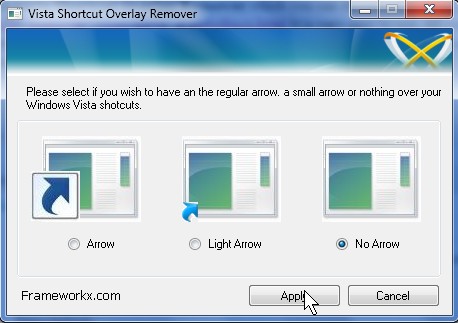
The Windows Vista and 7’s arrow on shortcut icons look kind of ugly, but you can remove them very easily with a program called Vista Shortcut Overlay Remover. It is very easy to use. All you do is pick how you want your short cut to look like, and press Apply button, and logoff Windows and log back on again. I tested it on Windows 7 and it works for 7 as well. Plus, there is no need to go into your Windows Registry and risk currupting it by deleting the wrong key or mistyping a value.
Download it at ::  http://download.cnet.com/Vista-Shortcut-Overlay-Remover/3000-2072_4-10608910.html
Tagged as:
gui,
operating system,
OS,
remove shortcut arrow,
short cuts,
user interface,
windows,
windows 7,
windows Vista
by Johnson Yip
on January 20, 2010

File Backup Imaging Recovery is a new section I added to this blog it is dedicated to teaching people how to back up their files, image their hard drives, and recover their files from a hard drive with free software. Keeping back ups of files and drives is a very important part of the computing experience, so it deserve a section to itself. Copy (CTRL+C) and Paste(CTRL+V) worked in the past, but in toady’s world it is not very useful since we have so many files on our computers, and operating systems take hours or sometimes days to customize by installing software, applying tweaks, and loading GBs worth of data onto hard disks. Plus, bookmarks, E-mail contacts, and passwords are all stored on different folders which can be difficult to back up, so in today’s technically advance computer world it is best to use hard drive imaging/cloning tools to backup your whole drive at least once a year or every six months, and run the built-in back up utility to automatically backup your files on a daily or weekly basis. Plus, there are so many distractions like work, school, TV, relationships, etc which makes people forget about manually backing up their hard drive till it is too late, so I decided to make a File Backup Imaging Recovery section to show people how easy file backup and imaging really is. If you did not take my advice on backing up your files, and imaging your drives, you can learn about how to use free software to recover your deleted/formatted files, or accessing a computer that won’t boot with a Live-CD to access your files for copying onto a external drive or burned to CD.
Visit my category on File Backup Imaging RecoveryÂ
I also recommend you get an External Hard drive like the Iomega Prestige 1 TB USB 2.0 Desktop External Hard Drive Â if you don’t have one since knowing how to image and back up your drive is not very useful if you don’t store the drive image, and back up files in a safe external location like a bank vault where it is less likely to get stolen by a home invader or your nemesis.
 if you don’t have one since knowing how to image and back up your drive is not very useful if you don’t store the drive image, and back up files in a safe external location like a bank vault where it is less likely to get stolen by a home invader or your nemesis.
Tagged as:
backup,
cloning,
data recovery,
data security,
File Back up,
Hard drive imaging