by Johnson Yip
on January 30, 2010
in
Computer,
Computer Tutorials,
Hardware Tutorials,
Internal PC Parts,
Microsoft Windows,
Operating Systems,
Peripherals & Accessories,
Software,
software tutorial,
System Utilities,
Tech Tutorials
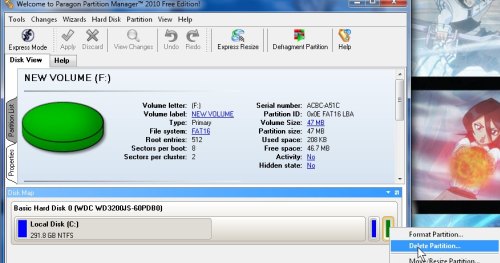 There are many reasons to delete a partition. For example, You want to enlarge your system partition by getting  rid of the recovery partition because you imaged your entire drive with drive imaging software, so you have no need for the system recovery parttion anymore. Maybe you need a larger partition to store a large file which is bigger then your current partition on a drive with multiple partitions with a lot of empty space, or you need to free up some partitions to install an operating system which uses lots of space.
Paragon Partition Manager 2010 Free Edition lets users delete partitions, and re-size partitions still on the hard drive to fill up the unallocated hard disk space left behind after you deleted the partion within Windows with Partition Manager 2010.
Download it at http://www.paragon-software.com/home/pm-express/
Easily Delete a partition with Paragon Partition Manager 2010 Free Edition in 3 steps tutorial
Tagged as:
delete,
disk management,
disk utilities,
format,
hard drive,
Paragon Partition Manager 2010,
partition,
partitioning,
System Utilities,
windows
by Johnson Yip
on January 30, 2010
in
Computer,
Computer Tutorials,
File Backup Imaging Recovery,
Hardware Tutorials,
Internal PC Parts,
Local PC security,
Microsoft Windows,
Operating Systems,
Security,
Software,
software tutorial,
System Utilities,
Tech Tutorials
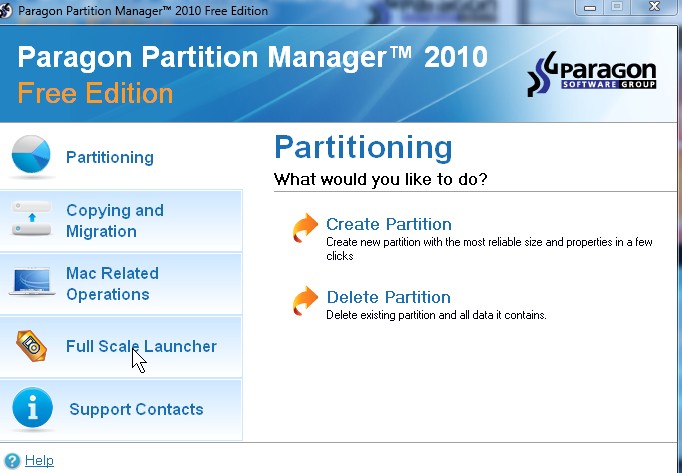
Disk partitioning is like adding a wall between a room to make two rooms. However, disk partitioning uses software to re-size a physical hard drive into two sections, so you can organize your files and folders better, prevent defragmentation of your Windows partition by putting the swap, and media files on another partition. Partitioning can also prevent data loss. If your Windows partition is not bootable, but you save your files on a different partition then you are safe if your Windows partition becomes currupt. You can just reinstall Windows on your Windows partition and your files will still be on your files partition. One of the coolest feature of having an extra partition is making a dual boot computer, so you can install Ununtu Linux on partition 2 while still being able to boot Windows from partition 1 on the same drive. One of the most common reasons for partitioning a hard drive is for file sharing since Windows 3,11 Windows 98-ME, older OS computers can’t read drives partitioned in NTFS drives, so you need to partition part of your drive to FAT 16 or 32 depending on what OSes you use.
 Paragon Partition Manager 2010 Free Edition allows you to resize a partition or disk which has free space, and files on it from within Windows. Windows Computer management does not allow you to resize or add an extra partition on the system partition. You can use FDISK ,but all your data will be gone after you partition and format your drive.
 Paragon Partition Manager 2010 Free Edition is very easy to use. It has a nice graphical user interface.
Download it at http://www.paragon-software.com/home/pm-express/
Learn to resize a partition with Paragon Partition Manager 2010
Tagged as:
disk partitioning,
hard drive partition,
Hard Drives,
Hardware Tutorials,
paragon partion manager free edition,
software tutorial,
windows disk partioning
by Guest Author
on January 29, 2010
 In today’s fast-paced world, convenience is a top priority; otherwise, time is lost and possibly money. A perfect example of how life has changed with this greater emphasis on speed and convenience is the ubiquitous use of cell phones that serve as mini-computers. No longer do you have to wait to go to the office to read all of your emails or surf the web. You can do that in comfort of your car or even while walking. Another device that is changing how people operate is the portable scanner. Here’s how.
Unlike the bulky scanners that you often find in offices, the portable scanner is lightweight and small enough to carry in your briefcase. At just under 12 ounces and no bigger than a three-hole punch device, this portable scanner is as easy to transport as a small laptop computer. And with no additional power source needed (uses a simple USB cable), there’s no reason not to take advantage of this remarkable device. But these features are just the beginning.
The portable scanner is able to scan a multitude of documents (not just the ordinary 8 x 11 piece of paper). It can scan such things as photos, checks, ID cards, receipts and even business cards. In other words, it can digitalize just about any hard copy document imaginable within a matter of seconds.
Picture the following scenario. You’re someone on the go and time is of the essence. You’re on a business trip where you’ll be meeting a number of potential clients. Not only will you be collecting business cards, but you will also have a slew of receipts that you will need to be reimbursed for. Prior to having a portable scanner, you would need to take the time to collect all of the cards and receipts (making sure not to lose any of them) and then hand them to the business office when returning to home. With a portable scanner in tow, however, you would simply need to insert the business cards and receipts into the scanner and within seconds you would have a digitalized version of those items, which could then be emailed to your business office.
The portable scanner is the wave of the future.
A portable scanner is lightweight enough to move from desk to desk so that only two or three scanners are needed for a medium-sized office environment.
Tagged as:
accessories,
copying,
hardware,
input device,
peripherals,
scanners