by Johnson Yip
on January 12, 2010
in
Computer,
Computer Tutorials,
Hardware Tutorials,
Internal PC Parts,
Microsoft Windows,
Operating Systems,
Peripherals & Accessories,
Software,
software tutorial,
System Utilities,
Tech Tutorials

You just downloaded an ISO file, but you don’t have any CD-R or DVD-R to burn it to. Maybe your laptop, netbook, and desktop does not have a Burner. CDs are slowly being replaced by Flash drives, and other types of storage like hard drives by many people since Flash drives and hard drives are less likely to get scratched or cracked.
Unfortunately, a lot of people still distribute their software with CD Images (ISO files) which requires you to burn it to a CD in order to install it on your PC.
Well, with a software called Virtual Clone Drive by SlySoft. You can just mount it by double clicking the ISO file or right clicking it and choose “mount virtual drive” from the Right Click Menu.
You can download Virtual CloneDrive at : http://www.slysoft.com/en/download.html
Learn how to mount a CD image with Virtual Clone Drive tutorial
Tagged as:
burning,
cd,
dvd,
image,
iso,
microsoft,
mount,
slysoft,
virtual clone drive,
windows
by Johnson Yip
on January 12, 2010
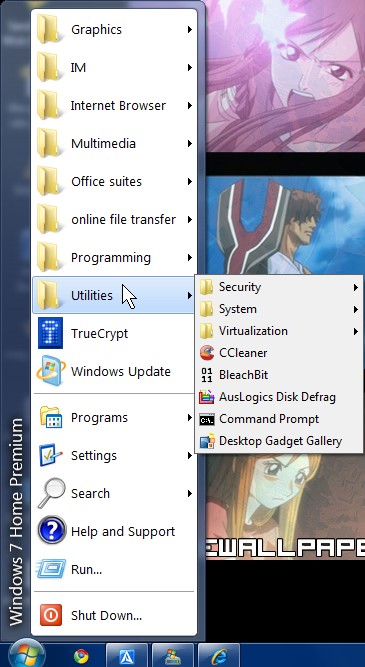
Windows 7 new start menu is great, but it is also kind of confusing for people who are used to the classic start menu which was available for people to use from Windows 95-Vista. However, Microsoft decided to not add the classic start menu feature to Windows 7.
There is a third party program called Classic Shell which can be used to make a Classic Start menu for you. It is incredibly easy to use. All you have to do is install it, and use it. The best part is it is free and does not use only 1.4 MB of RAM.
Download it at: http://classicshell.sourceforge.net/
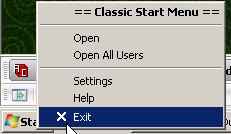
If you want back the regular start menu with the search box after installing Classic Shell Menu, all you have to do is right click the start button and pick exit from the context menu.
Tagged as:
classic shell,
classic start menu,
gui,
microsoft,
user interface,
windows 7
by Johnson Yip
on January 12, 2010
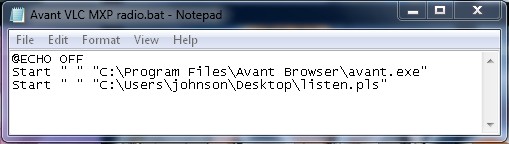
Batch Files are very useful because they can be used to copy a lot of files with a click of a mouse. All you have to do is write the batch file and run it. You need to know MS-Dos/command prompt commands to make batch files work since batch files use MS-DOS as it main instructional language.
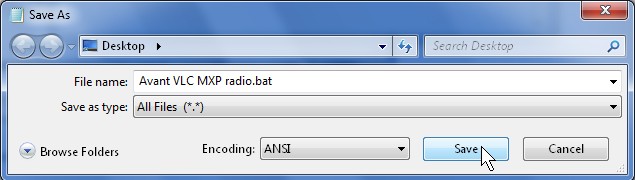
You use Notepad or any other Text editor and save the file with a .bat extension, you need to save as type to “All File *.*”
See some of my templates for making Batch files for common tasks
Tagged as:
bat,
Batch files,
cmd,
command prompt,
microsoft,
ms-dos,
operating system,
OS,
windows